
Portrait for people and headshots
Use Portrait guidance when restoring or removing areas around a person, including clothing, hair, glasses, hands, and spaces between the arms and body.
Use this free photo background remover to isolate a person, product, pet, or everyday object from its surroundings. Review the automatic cutout, correct difficult areas with Keep or Remove points, and download a transparent PNG while the source photo stays in your browser.
or drop up to five files
JPG, PNG or WebP · 20 MB eachNot happy with the automatic result? Use Keep to restore missing areas or Remove to clear unwanted background, then click the original image to apply the adjustment.
Your images are processed locally and are not uploaded to our application server.
A photo background remover separates the main visible subject from the setting around it. After you click Remove background, local AI creates a soft subject mask for the whole photo. The original file remains unchanged in the browser session while the checkerboard preview shows which areas will become transparent. Choose Keep to restore a missing part of the subject or Remove to clear scenery that remains in the cutout.
Photos contain softer and less predictable boundaries than simple graphics. Hair, fur, motion blur, shadows, glass, narrow straps, and colors shared by the subject and background can all need a closer look. Add correction points one at a time and compare the result with the original before downloading it.
The final PNG keeps the source photo width and height. Test it over the color, image, slide, listing, or profile layout where it will be used because a faint halo that disappears on the checkerboard may become visible on a light or dark destination background.
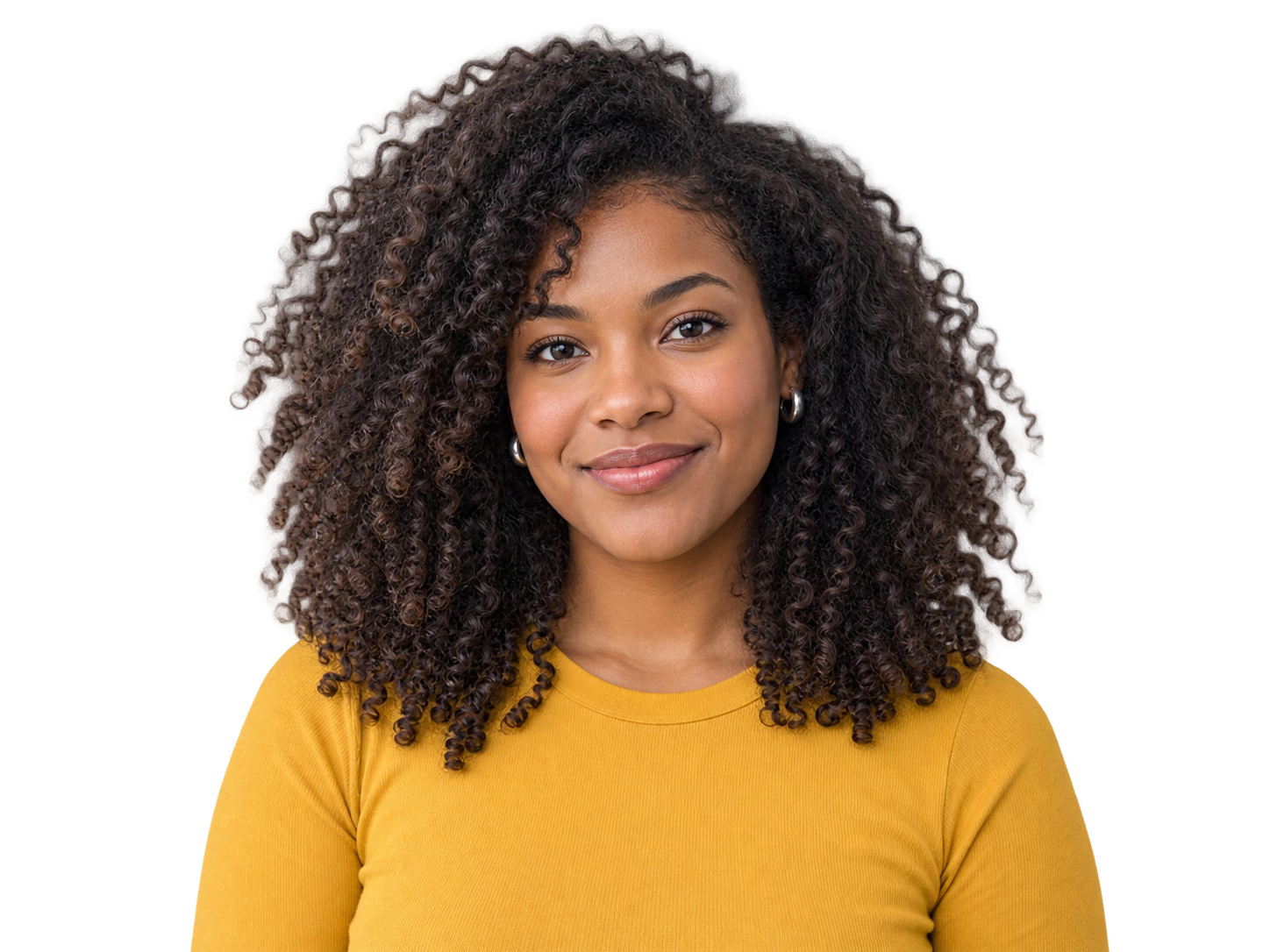
The automatic cutout uses the same model for every photo. Product and Portrait presets affect Keep or Remove corrections only, so choose the closest subject type when you need to refine the first result.
Use Portrait guidance when restoring or removing areas around a person, including clothing, hair, glasses, hands, and spaces between the arms and body.
Use Product guidance for photographed goods, furniture, food, vehicles, pets, and other foreground objects with a defined outer shape.
A preset does not change the initial automatic model or guarantee a perfect edge. Inspect the full subject and switch guidance only when adding correction points.
Select a JPG, PNG, or WebP file up to 20 MB. A sharp subject with visible contrast against the setting gives the model more useful edge information.
Click Remove background, inspect the checkerboard preview, then add Keep points to missing subject areas or Remove points to leftover scenery.
Check the boundary over light and dark colors, then save the transparent result at the original photo dimensions.
Low resolution, heavy compression, blur, glare, low contrast, fine hair, glass, and transparency can produce uncertain edges. Corrections guide the mask but cannot recreate detail missing from the source photo.
It does not erase a person or object from the middle of a scene, rebuild the hidden backdrop, retouch skin, correct lighting, or replace the background with generated content.
Reviewed 2026-09-07
Separate a person from a room or outdoor setting before placing the portrait in a profile, resume, speaker card, presentation, or social design.
Turn photographed items into reusable cutouts for store listings, comparison layouts, catalogs, ads, and branded backgrounds while checking labels and narrow gaps.
Isolate an animal or everyday object for a collage, thumbnail, invitation, moodboard, lesson, or personal project, then inspect fur and soft edges closely.
Choose a supported photo, click Remove background, review the automatic subject mask, refine missed areas with Keep or Remove points, and download the result as a transparent PNG.
The automatic mask can preserve many visible hair edges, but fine strands, blur, and similar background colors may need correction. Compare the original and cutout, then add points gradually where the boundary is wrong.
No. The source photo, subject mask, correction points, and generated PNG stay in the current browser session. The browser downloads model and runtime files so it can process the image locally.
Yes. The browser uses an optimized working image for inference, then applies the completed mask at the source width and height when it creates the PNG.
This tool exports a transparent PNG rather than adding a replacement scene. Place that PNG over a color or image in a design, presentation, or photo editor.